

How to make differences easy to understand on your slide
Plan vs. actual variances only become meaningful when the audience can understand not just the difference itself, but also its cause, direction, and impact. In PowerPoint, this means going beyond simply showing numbers and making it clear why results have changed.
Why plan vs. actual variances are often difficult to understand
In many presentations, variances are calculated correctly but remain difficult to interpret. Common reasons include:
- Tables without visual context
- Before-and-after comparisons without explanations of the underlying causes
- No distinction between positive and negative effects
- No clear prioritization of the most important drivers
The variance may be visible, but not explainable. That is not enough for management decision-making. The key question is: Which factors caused the variance, and what impact did they have?
A clear variance presentation is always based on three elements:
- The starting value, such as the planned figure
- Changes caused by individual drivers
- The final value, meaning the actual result
Which chart types best explain changes and drivers
For variance analysis, a small number of clearly structured chart types, especially waterfall charts, are highly effective. The most important factor is breaking down causes logically.
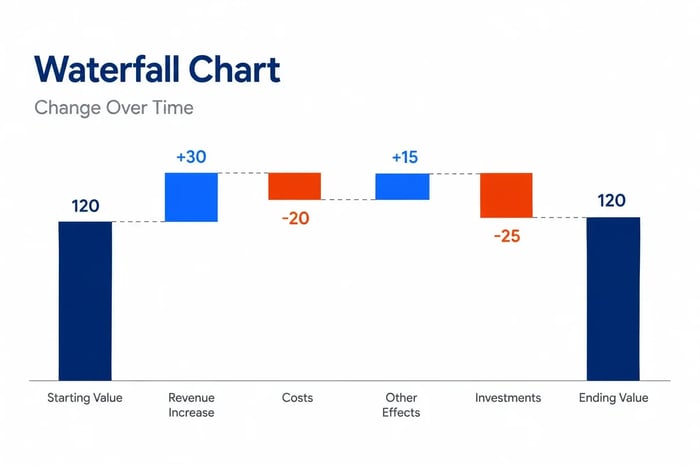
Waterfall charts for driver analysis
Waterfall charts are especially useful when breaking down a plan vs. actual variance into individual influencing factors such as price, volume, mix, or one-time effects. This makes it easier to understand what caused the variance.
Implementation:
- Prepare the starting value, relevant drivers, and ending value in a structured way in PowerPoint
- Create a waterfall chart based on this structure
- Define the starting and ending values as totals
- Add clear labels
- Apply a consistent color scheme for positive and negative effects
You can find a detailed step-by-step guide here: Guide waterfall charts
Visualizations for quick interpretation
If you need to classify a variance quickly, a compact delta visualization is often sufficient.
Implementation:
- Use two bars for planned and actual values
- Display the difference directly on the chart
- Optionally visualize direction with an arrow
Before-and-after comparisons with targeted highlighting
A structured comparison is sufficient when a detailed driver analysis is not required.
Implementation:
- Display planned and actual values as bars or columns
- Visually highlight the actual value
- Place the variance directly on the chart
Advanced visualization techniques for more complex variances
When dealing with special cases, such as explaining variances across multiple dimensions, standard charts are often not enough. In these situations, additional visualization techniques can help:
- Axis breaks
Useful when working with very different scales to make both large and small effects visible at the same time - CAGR visualizations (Compound Annual Growth Rate)
Suitable when evaluating variances over longer periods and comparing growth rates - Total labels
Allow key figures to be understood quickly, independent of the chart itself - Average lines
Provide additional context, for example against benchmarks or previous periods - Variance arrows
Highlight the direction and momentum of change
These elements should be used carefully because they can increase complexity. For experienced PowerPoint users, however, they make it possible to present even advanced analyses in a compact way.
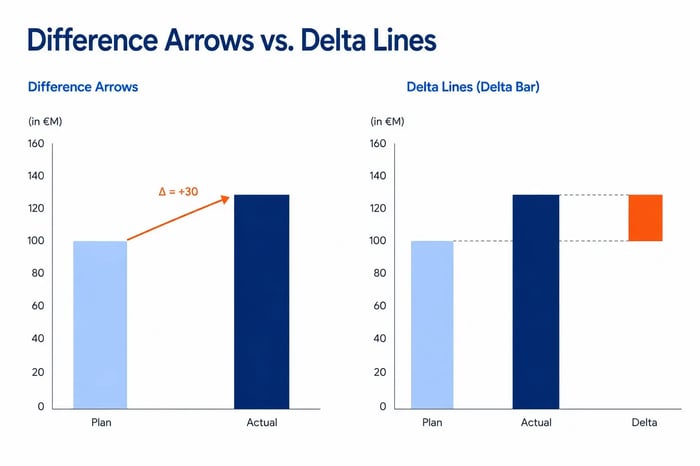
What is the difference between delta lines and variance arrows?
While a variance arrow highlights the variance between two points, delta lines (or bars) function as standalone visual elements that represent the magnitude of the variance itself, for example through shaded areas or filled bars.
Variance arrows connect the starting value (plan) directly to the ending value (actual). They emphasize the jump and movement between two specific columns. Ideal for emphasizing the variance itself, especially in waterfall charts or variance analyses.
Delta lines or bars often appear as standalone floating columns, such as in IBCS waterfall charts, or on a separate variance axis. They show the size of the variance as an area. They work better for complex data scenarios where viewers need to quickly recognize the size of the variance relative to the scale.
5 tips for making variances easier to understand
The effectiveness of a variance analysis does not depend only on the chart itself, but on the overall structure of the slide. Variances become easy to understand only when the key message, drivers, visual coding, and explanations work together clearly.
1. Create a clear key message
The headline should immediately classify the variance, for example:
- “Revenue is 8% below plan due to a decline in Segment X”
This makes the message immediately understandable.
2. Structure drivers logically
Group influencing factors into meaningful categories, such as:
- External market influences
- Internal effects
- One-time special effects
This creates a clear line of reasoning.
3. Use consistent color coding
Colors should guide the audience, not decorate the slide:
- Green for positive effects
- Red for negative effects
- Gray for neutral elements
Consistency across all slides is essential.
4. Adjust the level of detail carefully
Adapt the presentation to your audience:
- Management needs a small number of prioritized drivers
- Functional teams benefit from more detailed analyses
If necessary, create different versions of the same slide.
5. Add short explanations to charts
Charts become easier to understand when they include targeted explanations:
- “Price effect caused by Q2 discount campaign”
- “Volume decline in the European market”
This creates a clear connection between the number and its underlying cause.
Conclusion
Plan vs. actual variances become understandable when they are not only displayed, but also explained logically. Waterfall charts reveal the drivers, delta visualizations provide quick orientation, and advanced elements such as delta lines, variance arrows, and average lines increase analytical value. Combined with clear structure and consistent visual coding, these approaches create variance analyses that support informed decision-making.
Would you like to present variances in PowerPoint professionally and clearly? Discover the charting capabilities offered by empower® Chart Creation.

Saving PowerPoint presentations as video

Presenting roadmaps clearly in PowerPoint