

You've created your first PowerPoint presentation with Copilot. The logo is in place, and the colors look right at first glance. But the slide layouts? They barely resemble your company's standard template. And once again, the marketing team is back in PowerPoint fixing slides.
In this guide, we'll walk you through the setup process, explain what you need, and highlight the settings that matter most for maintaining a consistent brand identity.
What is a Copilot Brand Kit?
A Copilot Brand Kit is a collection of your company's brand guidelines and approved brand assets within Microsoft Copilot.
It helps Copilot follow your brand standards when generating presentations and other supported content.
Your Brand Kit can include
- Company logos and color palettes
- Corporate fonts and PowerPoint templates
- Images, illustrations, and icons
- Brand voice guidelines, including tone and preferred terminology
What license do you need?
To create and use a Brand Kit with AI-powered features, you need a Microsoft 365 Copilot Premium license and an appropriate work account.
Even if your organization has already made an official Brand Kit available, employees without this license cannot use it to generate AI-powered presentations.
Your IT team can also manage permissions to control who can create or edit Brand Kits. For more details, see Microsoft's documentation on Brand Kit access and governance.
Before you start: What should go into your Copilot Brand Kit?
Before setting up your Brand Kit, take a moment to review your company's brand materials. After all, you don't want Copilot using an outdated logo or a PowerPoint template from three years ago.
The good news? You don't need to gather every file from your brand portal. Focus on the assets you actually want Copilot to use.
Checklist: Brand assets to prepare
- Logos: Your current primary logo and approved variations, including versions for light and dark backgrounds
- Colors: Your primary and secondary brand colors with exact color values, preferably HEX codes
- Fonts: Approved fonts for headings, body text, and other uses
- PowerPoint templates: Your current corporate template, including the slide master, layouts, and sample slides
- Images and icons: Selected, approved brand images, illustrations, and icons
- Brand voice: Guidelines for tone, writing style, and preferred brand terminology
- Ownership and responsibilities: The people responsible for approving, updating, and managing brand assets
Once you've gathered these materials, you're ready to create your Brand Kit.
How to Set Up a Copilot Brand Kit in Six Steps
You can create your Brand Kit directly in the Microsoft 365 Copilot app. You don't need advanced design skills. What matters most is starting with the right brand assets.
Step 1: Open Brand Kits in Microsoft Copilot
Open the Microsoft 365 Copilot app and sign in with your work account.
Navigate to Apps and more → Create → More → Brand Kits.
You can also open Brand Kit management directly at office.com/create/brandkit. From there, you can view your existing Brand Kits or create a new one.
Note: Microsoft regularly updates the Copilot interface, so the exact menu names and navigation may vary depending on your version.
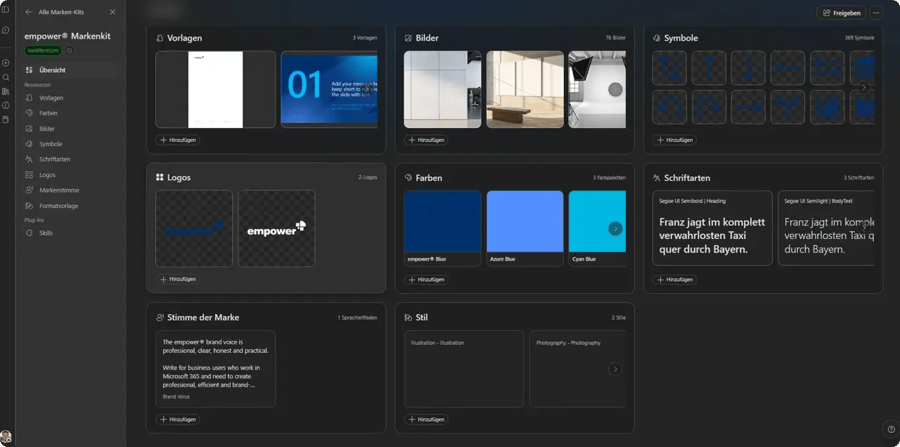
Step 2: Create a new Brand Kit
Click "Create Brand Kit" and enter a name. Choose something your team will immediately recognize, such as your company name or the name of a specific product brand.
Your new Brand Kit starts as an unpublished draft. This allows you to add and review your brand assets before making the kit available to others.
Step 3: Add your logos, colors, and fonts
Now it's time to establish your brand's visual identity.
Upload your approved logos, enter your brand colors, and add the appropriate fonts. Whenever possible, use exact color values. A dark blue that looks close to your official brand color isn't necessarily the right shade.
Make sure to include the logo variations your team needs. A logo that looks great on a white title slide might be difficult to see on a dark background.
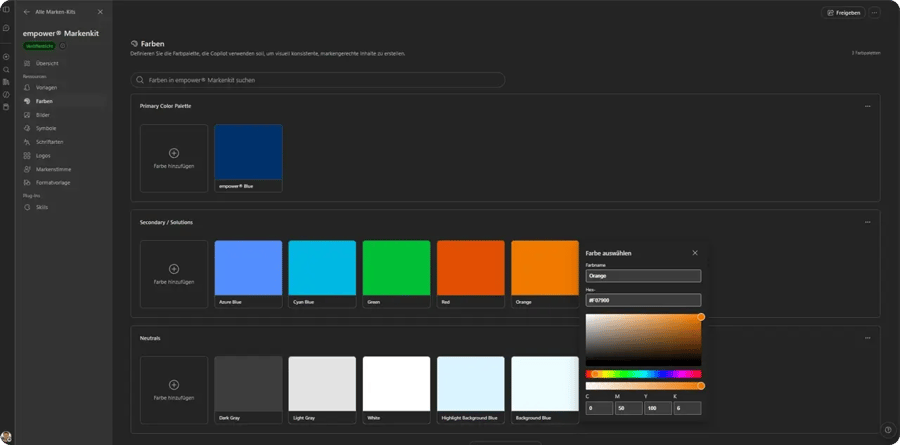
Step 4: Add PowerPoint templates and other brand assets
This is one of the most important steps.
Logos and colors alone won't give Copilot enough guidance to reproduce the look and feel of your company's presentations.
Open the "Templates" section and upload your approved PowerPoint template. Microsoft supports both PPTX and POTX files.
Good to know: If your organization already stores approved PowerPoint templates in a SharePoint Organization Assets Library, you can link that library to your Brand Kit instead of uploading the templates again. See Microsoft's documentation on the Organization Assets Library for more information.
Copilot uses existing slide layouts, placeholders, and sample slides to help generate presentations that match your brand.
For the main content areas in your PowerPoint template, use actual placeholders rather than manually positioned text boxes whenever possible. Copilot can populate these placeholders with content, while regular text boxes don't work the same way. Microsoft's PowerPoint template recommendations provide additional guidance.
When you upload a template, Copilot automatically evaluates it and provides feedback on how well it works with the system. You'll also see recommendations for improvements. Don't skip this review. Taking the time to prepare your template properly can save your team from having to fix every AI-generated presentation afterward.
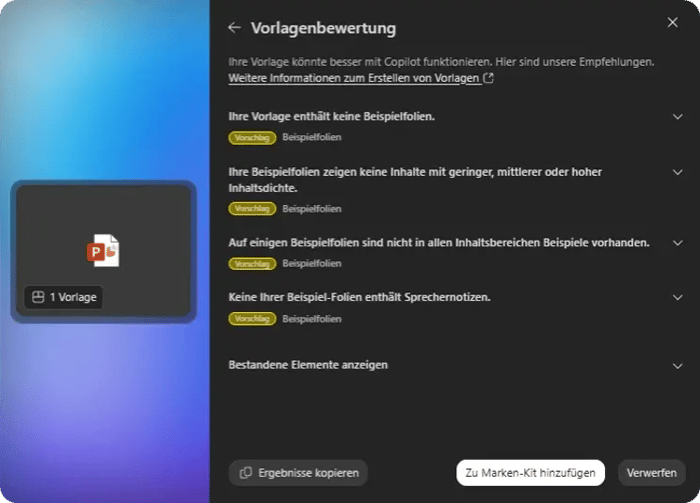
You can also add approved brand images, icons, and brand voice guidelines as needed.
Step 5: Share and publish your Brand Kit
Once your Brand Kit contains all the necessary assets, you can make it available to other users. Microsoft offers different permission levels. Users with editing permissions can manage and update the Brand Kit, while users with read-only access can work with the published version.
It's important to understand the difference between sharing, publishing, and official brand approval. Sharing determines who can access the Brand Kit. Publishing makes the current version available to authorized users.
To make a Brand Kit an official part of your organization's brand resources, an authorized brand management representative must also designate it as an official Brand Kit. Once this happens, the Brand Kit becomes an organization-owned asset. Only users with the appropriate Brand Manager permissions can make further changes.
Microsoft provides more details in its documentation on managing official Brand Kits.
If your company has multiple departments or brands, define these responsibilities early to avoid confusion later.
Step 6: Use your Brand Kit in PowerPoint
Once your Brand Kit is published, you can start using it in PowerPoint.
Open a presentation and launch the Copilot pane.
Click the plus sign (+) in the prompt field and select "Choose Brand."
Select the Brand Kit you want to use, then tell Copilot what kind of presentation to create.
Example prompt
Create a five-slide presentation for our next sales meeting. Include the quarter's key results, three major challenges, and our priorities for the coming months. Use the selected Brand Kit.
Copilot will use your approved brand assets and templates as a starting point for the generated slides.
Once the presentation is ready, review the content, layouts, and overall brand consistency. Even with a Brand Kit, a final quality check is a good idea.
What about employees who don't have a Copilot license?
They can still use your company's PowerPoint templates.
If those templates are stored in a properly configured SharePoint template library, employees can select and edit them directly in PowerPoint without an additional Copilot license.
They'll still need the appropriate Microsoft Office licenses and access permissions.
Four tips for creating on-brand PowerPoint presentations with AI
Setting up a Brand Kit is an important first step. These four tips will help you get more consistent results and make better use of your company's existing presentation content.
1. Show Copilot What Your Slides Should Look Like
A title slide, a text-and-image slide, a KPI overview, and a chart slide. Just a few well-chosen examples can help Copilot understand your company's presentation style.
Microsoft specifically emphasizes the importance of sample slides. These examples help Copilot recognize which layouts and design elements work best for different types of content.
You don't need to create examples for every possible slide design. Focus on the layouts your team uses most often.
What we learned: Providing fully designed chart slides can make a noticeable difference. We created examples of several chart types using our corporate brand guidelines and made them available to Copilot.
These examples help the AI follow our design standards when presenting charts, figures, and other data.

2. Use Strict Mode to enforce approved layouts
Sometimes it's fine to let Copilot experiment with presentation design. Other times, you want every slide to follow your approved layouts as closely as possible.
That's where Microsoft's Strict Mode, also known as strict brand compliance, comes in.
When Strict Mode is enabled, Copilot is not supposed to create new layouts or add or remove placeholders. Instead, it must work with the layouts already defined in your PowerPoint template and slide master.
There is a trade-off, though. The more tightly you restrict Copilot's design options, the more important it becomes to provide a flexible template with enough layouts to cover your needs.
What we learned: Strict Mode isn't foolproof. During our tests, Copilot sometimes generated designs that didn't follow our brand guidelines when we asked for especially creative or unusual slides.
To improve the results, we created an additional Copilot skill specifically for chart creation. This skill instructs Copilot to use our approved chart slides as the design reference whenever someone requests a chart. With this approach, we were able to improve consistency with our brand standards.
3. Add instructions directly to your PowerPoint template
Not every slide should be used in every situation. For example, your presentations might always need to start with a specific title slide. Or you might have a standard closing slide that shouldn't be changed.
Copilot supports instructions in the slide notes of your PowerPoint template. You can use these notes to tell Copilot that a particular slide should always appear first, for example. This gives you more control over how individual layouts are used without requiring employees to repeat the same instructions every time they create a presentation.
For more details, see Microsoft's documentation on Brand Kit template settings.
4. Reuse existing content instead of starting from scratch
Why create a new slide if your company already has one that works?
Most organizations have built up extensive collections of presentations, charts, and other content over the years. Many of these materials have already been reviewed, approved, and designed to meet company brand standards.
Copilot can use existing PowerPoint templates and presentation content as a starting point. Even then, it's worth checking whether an approved slide or layout already exists before generating something new.
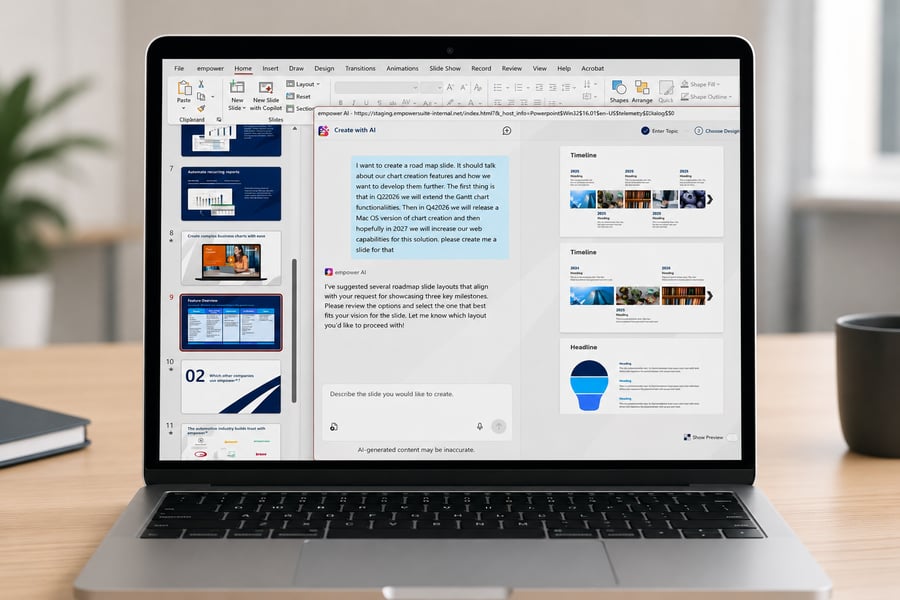
The process is even easier when the system automatically finds the right layout. Some AI-powered solutions can search centralized template libraries and recommend existing, professionally designed layouts based on the content you want to present.
That means you don't have to search through every template yourself.
Conclusion: Great Brand Kits start with great templates
A Microsoft Copilot Brand Kit is an important foundation for creating PowerPoint presentations that reflect your company's brand identity.
But a Brand Kit alone won't guarantee perfect slides. It gives Copilot the brand assets and design guidelines it needs. The final results also depend on how well your templates are prepared and how consistently the AI follows your instructions.
By providing strong sample slides, clear guidance, and the right settings, you can give Copilot a better foundation for creating on-brand presentations. And while AI can help reduce manual formatting work, a final quality check is still essential.


5 steps to brand-compliant Microsoft Office documents

AI presentation tools compared for 2026