










PowerPoint presentations that practically create themselves

empower® Slide Generation combines AI with design, templates, and corporate content to create on-brand business presentations in record time.
 Watch demo video (13min) 

Over 3 million people already trust empower® to create professional Office documents.

challenge-icon At a glance


Business presentations: It’s time for a game changer

The following average findings on current inefficiencies in the use of PowerPoint are based on the world’s largest representative study of how businesses use Microsoft Office.

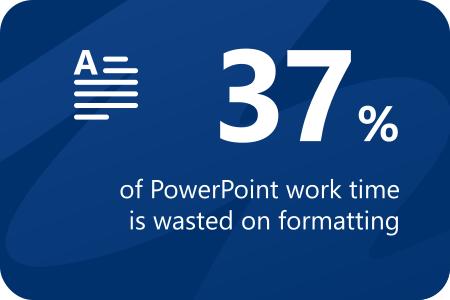
Stats PowerPoint work

empower® AI and automation eliminate manual formatting.

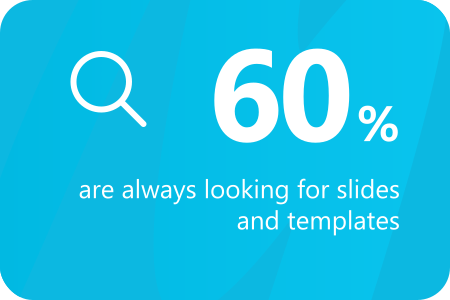
Stats: Looking for Slides & Templates

With empower®, content and templates are always just one click away.

Stats: Brand harmed

empower® delivers 100% consistent results and strong, impactful brands.

empower logo   Solution


Create perfect presentations with ease

empower® AI: Slides that practically create themselves

Seamlessly integrated into PowerPoint, empower® AI automatically creates professional, on-brand business slides in seconds instead of hours. Designed to make everyday work easier.

Automated presentation creation

Create presentations with speed and precision. A guided assistant helps you select your preferences and generates polished, ready-to-use presentations with a single click.

Templates and design elements at your fingertips

empower® Slide Generation brings your company’s full design ecosystem directly into PowerPoint. Templates, images, icons, fonts, and colors are always on brand and instantly accessible. 

Search and find slides – as easy as Google!

Nearly 60% of employees spend at least 30 minutes each month searching for documents. empower®’s full-text search locates content in seconds. Filter, sort, and preview results quickly, eliminating time-consuming searches.

Eliminate manual formatting

Repetitive formatting slows teams down. With empower®, you can arrange, position, and align content in seconds, without manual effort.

Corporate Design Check

The Design Check automatically identifies and corrects brand inconsistencies. With empower®, maintaining brand compliance becomes effortless, with no need for manual fixes.

empower® - Everything you need for truly professional presentations

Folien speichern    Always up-to-date content

Never worry about outdated slides again. When opening a presentation, empower® automatically detects outdated content and lets you replace it with the latest version from the slide library in one click.

Versionshistorie    Version history

A built-in version history makes all changes transparent and shows exactly who made each update.

Rechetkonzept    Secure access control

Control who can view or edit content in the empower® library. The integrated permission system protects files and ensures consistent, trustworthy content across your organization.

Aus alt    Update designs in seconds

Legacy designs often remain in use longer than intended. With empower®, you can convert presentations to a new design in just a few clicks, faster and more effectively than traditional tools.

KI-Textbearbeitung    Consistency Check

Instantly review presentations for common issues such as hyphenation, punctuation, and wording, based on your predefined standards.

KI-Textbearbeitung    AI-powered text optimization

empower® AI analyzes your content, extracts key messages, and generates precise slide text. You can quickly refine headlines and body text using simple tools or prompts, making them shorter, more detailed, or completely rewritten.

Do you want to experience empower® for yourself?

Explore all features with our interactive product tour or watch a recorded demo of the software.

 Book a meeting  Watch demo video (13min)

implementation-icon  Implementation


Welcome to empower®: seamless implementation and onboarding

Our dedicated onboarding team supports you every step of the way. Below are the key milestones for a successful implementation

Step 1: Design setup
  • You provide us with the necessary materials, including your PowerPoint master, slide templates, chart and table templates, images, and icons. We review the materials for completeness and inform you of the setup timeline. Typically, the setup takes 4–6 weeks, depending on the scope of customization.
  • To get empower® up and running quickly, we start with basic customization, allowing you to install and use empower® within just a few days. To proceed with further setup activities, we require a guest user account in your Entra ID, which must be created by your IT team.
  • Once the setup is complete, we introduce you to your empower® environment and, if needed, conduct a revision phase.
  • You will receive a preconfigured installation package along with technical documentation for a smooth implementation.
Step 2: Rollout
  • Brief coordination with your IT department for technical preparation.
  • Planning and inviting users to online training sessions.
  • Your IT department deploys the software via your company’s software distribution platform. We provide technical support if needed.
  • Users receiving the software participate in online training or access the recorded session and provided support materials.
Step 3: User acceptance
  • Monitoring software usage through telemetry data.
  • Planning specialized training sessions on specific topics to maximize user adoption.
  • We stay engaged with you until your expectations for the software are fully met.
Slide Updates    Implementation timeline

The software rollout takes 1–4 weeks, depending on the size of your company (excluding design configuration and training). The entire implementation process typically takes 3–4 months.


Rights Management    Required resources

Step 1:

  • Responsible Person: One person to provide all presentation templates, design elements (images, icons, etc.), and the company’s design manual, as well as to answer any related questions. (Estimated time: 2–3 hours)
  • After setup, this person reviews the software’s visual implementation and gives final approval for use. (Estimated time: 1–2 hours)

Step 2:

  • Project Lead: Invites all users to online training sessions and communicates key information about the new software. (Estimated time: ~1 hour)
  • IT Department: Deploys the software. The actual deployment time is minimal but may vary depending on company processes, external service providers, or internal testing requirements.
  • End Users: Participate in online training, watch the recorded session, and achieve initial work results with the new software. (Estimated time: ~2 hours per person)

Step 3:

  • Usage Tracking: No effort required from your side—telemetry data is collected and analyzed automatically.
  • Additional Training Sessions: Planning takes approximately 1 hour, while the actual training sessions last around 30 minutes each.
Asset Library    IT requirements​

Your IT department will need to connect your Entra ID or Okta authentication provider with the empower® library in Azure. Once that’s done, the team only needs to deploy the add-in and upload the configuration file (manifest) for the web add-in.

Your IT team will also be responsible for first-level support and for managing software updates throughout the year—though update tasks are only required if your company opts out of automatic updates. We release 3-4 software updates each calendar year, and in our experience, most customers apply 1-2 updates annually.

The total estimated IT and support workload is about 0.25 full-time equivalent (FTE) per year.

Technical Information

empower is ISO 27001 certified and guarantees maximum data security:

  • Each customer receives a separate backend instance, hosted on Microsoft Azure. We connect your Entra ID to this instance so that only your users can access it.
  • We synchronize your Entra ID users (with ID, user name, group membership and any other fields for email signatures and dynamic Word documents).
  • In the software, users can access content, templates and design elements via a library. This non-critical content is intended to be shared with the outside world. For each saved element in the library, it is possible to trace who created and last edited the document.
  • What can take place locally only takes place locally: The corporate design check, slide conversion and the execution of other functions, such as the automated creation of an agenda, take place on the client. The same applies to the filling of e-mail signatures or dynamic Word documents.

The software consists of two main components.

1. A local add-in for the user's Office program: available for Windows online and Mac (with some limitations). The software is distributed to users in the classic way via a software distribution platform as an .msi or .exe package.

2. A single tenant backend, hosted in the Microsoft Azure Cloud. This is where the templates and content stored in the library are hosted.

empower® ensures correct and flexible licensing via integrated software activation. The activation process takes place as follows:

  • Each client (PC) automatically activates itself on the empower® activation server at defined intervals, e.g. every 30 days. To activate a license, there must be an active Internet connection.
  • A new license is activated after installation if the user is a previously unknown Windows domain user.
  • Users can work with one license on multiple devices. If a client does not reactivate itself after an interval, its license returns to the license pool and becomes available again. This means that other users can take over the license when employees leave the company.
  • If all licenses are exhausted, the next client will receive a notification that no more licenses are available when attempting to activate. In this case, please contact us so that we can increase your license quota.
  • The empower® activation server can be reached at activate.empowersuite.com via port 443. Make sure that this connection is allowed through any proxy or firewall if required.

empower® can be seamlessly connected to conventional DAM systems allowing users to access assets such as images, icons and videos directly from the empower® library. This eliminates the need to switch or log in to a separate application and search for the respective asset in the DAM system.

Find more technical information in the empower® Tech Brief (Help Center).

The best alternative to the Microsoft SharePoint slide library

SharePoint is often used for slide management in companies. However, with SharePoint 2013, Microsoft abolished the slide library component because of poor customer adoption. SharePoint’s slide library integrated clumsily with the slide library in PowerPoint, its search was insufficient search, and it was unstable. The slide library of empower® solves all those problems. It completely replaces your SharePoint slide library and offers further advantages for you.

Efficient slide library without SharePoint

Make all your PowerPoint content available to the entire company in the empower® slide library. Share existing content and strengthen collaboration across the organization. Enhance your brand communication by embedding your design guidelines directly into PowerPoint. Deliver all your brand assets directly in PowerPoint. At the same time, you and your colleagues can work more productively and save time for the really important tasks.

empower® for Microsoft Teams

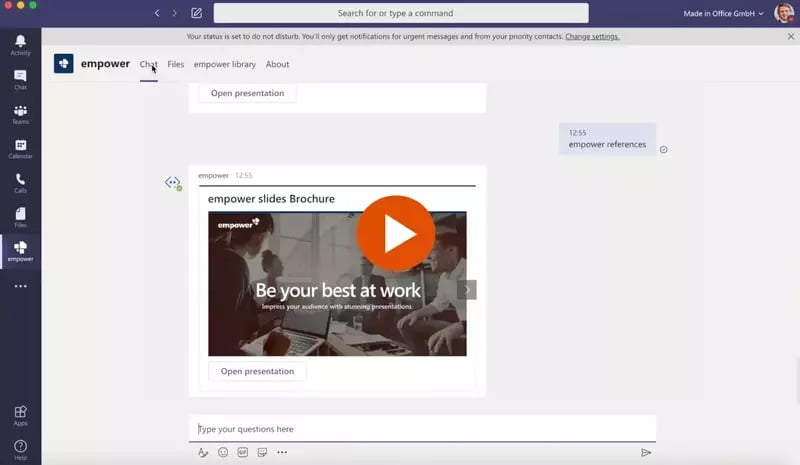
empower® also directly integrates with Microsoft Teams. People can browse the empower® Library or chat with the empower® Bot to find and open slides directly inside MS Teams.

Success stories from our customers: effortlessly creating perfect presentations

faq-iconFAQ


We have compiled these questions and answers to give you all the information you need about empower® Slide Generation, without requiring you to contact our sales team directly.

1. How is empower® AI different from ChatGPT, Copilot, and similar tools?

Other AI tools either do not work directly in PowerPoint, produce visually generic results, or both. empower® is built around your brand and delivers ready-to-use slides rather than drafts that still need polishing. It uses only your templates and design elements.

In short, this is not generic AI output. It is company-specific, brand-compliant slides that are ready to use immediately.

2. How does empower® AI work technically, and what are the technical requirements?

empower® AI uses ChatGPT together with the information entered into prompts and the corporate identity templates configured in the background. These templates define the boundaries for branding, layout, and structure, and the AI generates and refines content strictly within those parameters.

To use empower® AI, you need the empower® AI web add-in, available through the Microsoft Store, as well as a Microsoft 365 environment.

3. Where are the files stored in the empower® library?

By default, the data is stored in a dedicated Microsoft Azure cloud environment that we set up for you. This allows the data to be stored outside your IT infrastructure in a GDPR-compliant manner.

4. Can the files in the library be stored on our SharePoint instead of in Microsoft Azure?

Yes. You can connect SharePoint Online so that presentations, slides, and documents stored there appear in the library and can be searched easily.

In this setup, users do not have to change the way they work and can continue using SharePoint as their file repository. To make those files searchable, empower creates an index that is stored in empower’s Microsoft Azure cloud. If you prefer not to use that approach, your IT team can host the SharePoint Indexer internally so that all data remains under your control.

5. Can media assets such as images, templates, and similar materials also be stored in the library?

Yes. The software provides your design elements through a clear quick-access bar, making document and presentation creation more efficient and seamless. If you use a DAM system, design materials stored there, such as icons and images, can also be displayed in this quick-access bar through an integration with empower.

6. How does migration of existing content into the library work?

The library includes an import function that allows folder structures visible in Windows Explorer to be transferred directly into the library. You can also connect SharePoint Online. This makes it possible to access and use stored files directly in PowerPoint, Word, and Excel through the library. Individual presentations can also be added to the library in just a few clicks using empower® save functions.

7. Who can edit and manage library content?

Only users with the appropriate permissions can perform these tasks. Those rights are assigned selectively to keep the group of users with elevated permissions manageable and to maintain order within the library. We would be happy to advise you on the best setup.

8. How much effort does it take to maintain the library?

In most cases, our customers distribute responsibility for maintaining library content across multiple people within the organization. That responsibility can be divided by business unit, topic, location, or language so that no single person carries the entire burden. empower® update features make file management and maintenance much easier for the responsible teams and significantly reduce the time required.

If no one in your organization is available for this task, that is not a problem. With our Managed Service, we handle all file changes in the library for you so that you can stay focused on higher-value work. Contact us if you are interested in the Managed Service.

9. Could Microsoft Copilot not simply provide current content on request, making the library unnecessary?

Microsoft Copilot can access all files a user is permitted to access through Microsoft Graph. That includes both current files and older or outdated ones. At this time, Copilot cannot reliably distinguish between current and outdated information or ensure that the data it uses is up to date. Microsoft therefore recommends that customers strengthen their data governance and maintain order across all storage locations.

In our view, the effort required to do that is rarely cost-effective. Many users in corporate environments already struggle to keep even their desktop files organized. Enterprise file systems are significantly larger and more complex.

10. Do we need support from empower to customize an automated template?

No. After a short learning period, one or more technically skilled team members within your organization can take over administration and ongoing template maintenance.

11. How does empower® recognize that a slide in a presentation is outdated and that a newer version already exists in the library?

For empower® to detect an update, the outdated slide must originally have come from the empower® library. Our software assigns every library slide a unique ID, which makes its origin clearly traceable. In addition to matching that ID, empower® also checks the slide timestamps in the presentation and compares them with the corresponding versions in the library. This allows outdated versions to be identified reliably and enables the software to offer the latest library version automatically as a replacement.

Any further questions?

Arrange a free initial consultation.

 Book a meeting