Over 3 million people already trust empower® to create professional Office documents.
At a glance
Professional template management for businesses
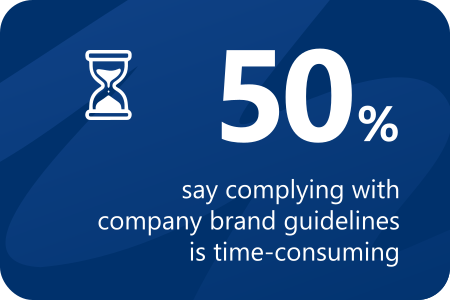
The following average findings on current inefficiencies in the use of Microsoft 365 are based on the world’s largest representative study of how businesses use Microsoft Office.
empower® integrates your brand guidelines directly into Microsoft 365.
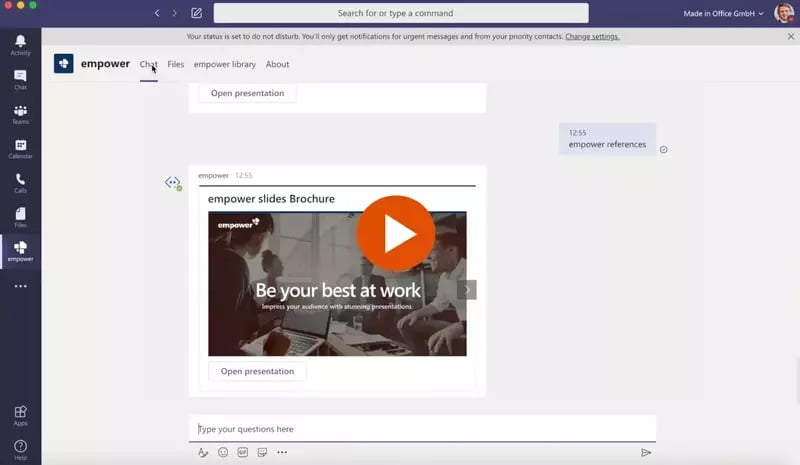
Content and templates are always just one click away with empower®.
empower® delivers fully consistent results and a unified brand experience.
Solution
Enterprise-grade template management from empower®
Dynamic templates for legally compliant documents in Microsoft 365
empower® is a cloud-based SaaS solution built on Microsoft Azure. It runs across Microsoft 365 desktop and web applications, on Apple macOS, and on mobile devices via a web app.
Seamless, low-effort integration with Microsoft 365 is ensured, as we are a Microsoft partner and a member of the Microsoft Compatibility Labs.
Simplified email signature management
28% of sent emails do not include a current or brand-compliant signature. empower® enables legally compliant, on-brand email signatures for all users. Administrators can centrally manage signature templates and marketing campaigns directly in Microsoft Outlook.
Consistent brand voice with empower® text AI
The empower®AI Assistant automatically applies your brand voice across emails, documents, and presentations, ensuring a consistent tone without the need for manual editing.
Learn more
Easily find the content you need and strengthen your brand
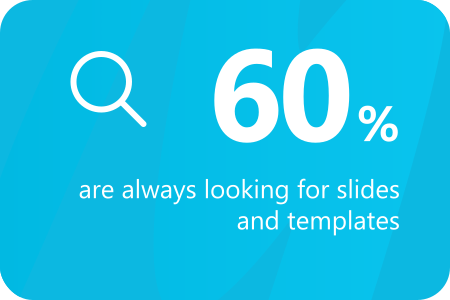
Nearly 60% of employees spend at least 30 minutes each month searching for slides and documents. With empower®’s powerful full-text search, they can find the right content in seconds. Results can be filtered, sorted, and displayed by type or language. No more endless searching, just real time savings.
Non-standard colors, fonts, and outdated templates can undermine brand consistency. On average, employees encounter these issues in 136 pieces of content every month. empower® Design Check automatically detects and corrects these violations, helping keep every presentation and document on brand.
With empower®, you can manage multiple PowerPoint designs and assign them to specific user groups. Default templates open automatically when PowerPoint launches, with no manual action required.
empower® Brand Consistency Calculator
How consistent is your brand in day-to-day work?
94% say that on-brand documents, presentations, and emails build trust. Yet our Office Study shows that many everyday materials do not reflect the brand. Given the high volume of content created and sent externally each month, it is clear that daily business communication has a major impact on brand perception.
The Brand Consistency Calculator shows how many external brand touchpoints in your company may be affected. It uses the average findings from the Office Study: one in three business documents is not on-brand. In addition, 28% of sent emails do not include an accurate, up-to-date signature. And 82% regularly send the content they create to external recipients.
Approximately how many office employees does your company have?
Number of Inconsistent Brand Touchpoints
Externally shared content per year that is not brand-compliant according to the representative Office Study:

The best alternative to the Microsoft SharePoint slide library
SharePoint is often used for slide management in companies. However, with SharePoint 2013, Microsoft abolished the slide library component because of poor customer adoption. SharePoint’s slide library integrated clumsily with the slide library in PowerPoint, its search was insufficient search, and it was unstable. The slide library of empower® solves all those problems. It completely replaces your SharePoint slide library and offers further advantages for you.
Efficient slide library without SharePoint
Make all your PowerPoint content available to the entire company in the empower® slide library. Share existing content and strengthen collaboration across the organization. Enhance your brand communication by embedding your design guidelines directly into PowerPoint. Deliver all your brand assets directly in PowerPoint. At the same time, you and your colleagues can work more productively and save time for the really important tasks.
Onboarding
Welcome to the empower® experience: seamless implementation and onboarding
Our dedicated onboarding team is here to guide you through the entire process. Below, we’ve outlined the key steps and milestones to ensure a successful user adoption:
- You send us the required documents, including your PowerPoint master, slide templates, images, icons, diagram styles, and templates for MS Word and email signatures. We’ll review them for completeness and inform you of the setup period, typically 4-6 weeks, depending on the scope.
- To get started quickly, we begin with basic customization, allowing empower® to be installed and used within a few days. For further setup activities, we’ll need a guest user in your Entra ID, set up by your IT department.
- Once setup is complete, we’ll present your empower® environment, and any necessary corrections will be made.
- You’ll receive the installation package and accompanying technical materials.
- Brief coordination on technical preparation with your IT department.
- Planning and inviting users to online training sessions.
- Your IT department distributes the software via your company's software distribution platform. We provide technical support if required.
- Users who receive the software take part in the online training or watch the recording and the accompanying material provided.
- Measurement of software usage via telemetry data.
- Planning separate training sessions on individual topics to ensure maximum user acceptance.
- We will support you until your expectations of the software are met.
Step 1:
- A designated person is required for the design setup to provide us with all Office templates and design elements (such as images and icons). This person should also be available to answer any detailed questions. The estimated time for this task is approximately 2–3 hours.
- After setup, this person will review the visual aspects of the software content and officially approve it for use. The estimated time for this step is 1–2 hours.
Step 2:
- The project management team will invite all users to the online training sessions and communicate key information about the deployment of the new software in advance. The estimated time for this task is about 1 hour.
- The IT department will roll out the software. While the execution time is generally minimal, it may vary due to testing procedures, outsourcing of the installation to service providers, or other technical assessments. The actual time required depends on your company’s internal processes.
Step 3:
- Measuring software usage does not require any effort on your part, as we will collect and analyze telemetry data.
- Planning additional training sessions takes about 1 hour, while the training itself lasts approximately 30 minutes.
Your IT department will need to connect your Entra ID or Okta authentication provider with the empower® library in Azure. Once that’s done, the team only needs to deploy the add-in and upload the configuration file (manifest) for the web add-in.
Your IT team will also be responsible for first-level support and for managing software updates throughout the year—though update tasks are only required if your company opts out of automatic updates. We release 3-4 software updates each calendar year, and in our experience, most customers apply 1-2 updates annually.
The total estimated IT and support workload is about 0.25 full-time equivalent (FTE) per year.
Technical information
empower is ISO 27001 certified and guarantees maximum data security:
- Each customer receives a separate backend instance, hosted on Microsoft Azure. We connect your Entra ID to this instance so that only your users can access it.
- We synchronize your Entra ID users (with ID, user name, group membership and any other fields for email signatures and dynamic Word documents).
- In the software, users can access content, templates and design elements via a library. This non-critical content is intended to be shared with the outside world. For each saved element in the library, it is possible to trace who created and last edited the document.
- What can take place locally only takes place locally: The corporate design check, slide conversion and the execution of other functions, such as the automated creation of an agenda, take place on the client. The same applies to the filling of e-mail signatures or dynamic Word documents.
The software consists of two main components.
1. A local add-in for the user's Office program: available for Windows online and Mac (with some limitations). The software is distributed to users in the classic way via a software distribution platform as an .msi or .exe package.
2. A single tenant backend, hosted in the Microsoft Azure Cloud. This is where the templates and content stored in the library are hosted.
empower® ensures correct and flexible licensing via integrated software activation. The activation process takes place as follows:
- Each client (PC) automatically activates itself on the empower® activation server at defined intervals, e.g. every 30 days. To activate a license, there must be an active Internet connection.
- A new license is activated after installation if the user is a previously unknown Windows domain user.
- Users can work with one license on multiple devices. If a client does not reactivate itself after an interval, its license returns to the license pool and becomes available again. This means that other users can take over the license when employees leave the company.
- If all licenses are exhausted, the next client will receive a notification that no more licenses are available when attempting to activate. In this case, please contact us so that we can increase your license quota.
- The empower® activation server can be reached at activate.empowersuite.com via port 443. Make sure that this connection is allowed through any proxy or firewall if required.
empower® can be seamlessly connected to conventional DAM systems allowing users to access assets such as images, icons and videos directly from the empower® library. This eliminates the need to switch or log in to a separate application and search for the respective asset in the DAM system.
Find more technical information in the empower® Tech Brief (Help Center).
How empower® helps reduce the long-term burden on your organization
empower® Managed Service
No matter which software you choose, managing templates and design elements takes time and creates unnecessary administrative effort.
empower® works differently. With our Managed Service, we take over administration of your template management system. When updates are needed, simply send us an email, and we will handle the rest.
Security at empower
"It is our highest priority and duty to protect our customers' data. To achieve this, we ensure that every part of our organization meets the highest security standards."
Fabian Willebrand, Executive Board member at empower

- ISO 27001 Information Security Management: empower meets international standards
- EU General Data Protection Regulation (GDPR): We are fully GDPR compliant, as protecting personal data is our top priority.

Less workload for IT
- Delegated System Maintenance: Departments can manage templates, design elements, and data, reducing the IT burden.
- User-Friendly Data Updates: Updating key company data is easy with our intuitive interface, accessible to all who need it.
- Scheduled Data Updates: Changes to company data can be scheduled in advance for seamless updates.
- Single Data Source: A centralized data source ensures Word documents and email signatures are populated with accurate company info, minimizing discrepancies.

Do you want to experience empower® for yourself?
Explore all features with our interactive product tour or watch a recorded demo of the software.
FAQ
We've created this overview to provide you with all the information you need about empower® without having to contact our sales team.
Naturally! You can choose between your templates and our templates and design elements or opt for a mixture of both.
By default, the data is stored in a Microsoft Azure Cloud which is external to your IT infrastructure. This setup is newly established by us and is fully compliant with GDPR regulations.
Only individuals with the appropriate permissions can change and manage the library content. These permissions are granted selectively to keep the group of users with extended rights manageable and to maintain order in the library. We’re happy to provide guidance on this process.
Yes, you can choose to connect a SharePoint Online. When you do, the presentations, slides and documents stored in SharePoint will appear in the library and can be conveniently searched.
In this scenario, your users do not have to change their workflow and can continue using SharePoint as their file repository. To enable searching, empower® creates an index of the files, which is stored in empower’s Microsoft Azure Cloud. If you prefer to keep all data under your control, your IT department can host the “SharePoint indexer” on your own servers.
SharePoint is a widely used enterprise solution with a complex structure, so it’s understandable that your IT department is cautious about approving connections to such a central company tool. Integration with empower® requires collaboration with your IT team. We will inform them in advance and provide professional support throughout the process. As a rule, the integration is completed after a few meetings, but the timeframe can vary based on the complexity of your SharePoint setup, your technical requirements, and any internal company procedures.
No, Microsoft Copilot is not a template management system, as it lacks the core features required for that role. A true template management system includes capabilities such as delivering templates and design elements, helping users select the right template when creating documents or presentations, updating and inserting company, user profile, and location data into designated placeholders, and managing email signatures.
One or more email signature templates – meaning the general structure of the signature with placeholders for user information, logo, and legal information – are stored in the cloud backend. On the user's client, the information from the connected Entra ID is enriched with company information, and the actual signature is filled in for the user. The company information can either be manually maintained in empower or imported from a leading system.
Using the same set of data, the dynamic Word templates on the user's computer are populated with the logo, address, contact details, and the footer.
Charging extra for administrative rights is unappealing and unnecessary. It is standard practice for software to be configurable at no additional cost. Therefore, there are no extra fees for managing the software. Administration rights can be granted as needed to efficiently manage the library.
No, this is not supported. Based on our experience, we also do not recommend this approach. Removing features users may occasionally need often creates resistance instead of building support for the project. If you would like, we can walk you through this topic in more detail during a conversation.
The library includes an import feature that lets you bring in folder structures directly from Windows Explorer. You can also connect your SharePoint Online environment, allowing users to access and use stored files from the library within PowerPoint, Word, and Excel. In addition, individual presentations can be added to the library in just a few clicks using empower®’s save functions.
For slides that contain predefined content, such as those used in company presentations, users receive update notifications and can apply updates immediately. This replaces outdated slides with the latest version from the library.