


Do you want to make your presentations more dynamic and link slides in PowerPoint? Then take a look at our tutorial. In this article, you will learn different ways to insert links in PowerPoint. We will show you how to create and insert links in PowerPoint and what options you have for designing your presentation, for example, with menu buttons.
What is internal linking in PowerPoint?
When should PowerPoint slides be internally linked?
Benefits of PowerPoint links:
- A more flexible and modern presentation style
- Maintains audience attention by avoiding slide searches
- Makes the overall story and flow easier to follow
How do you link slides in Microsoft PowerPoint?
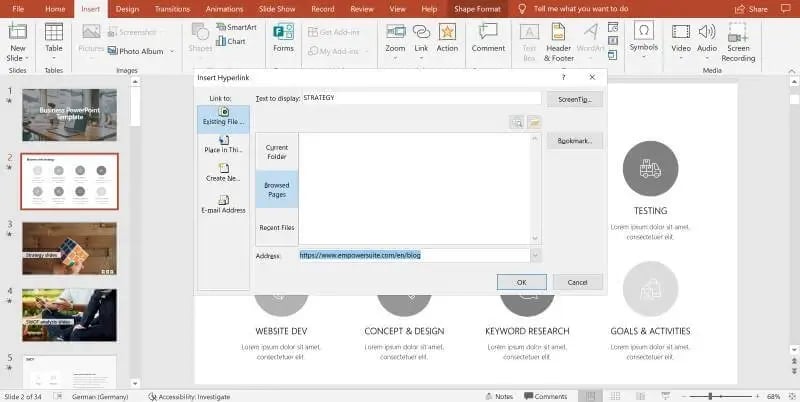
- Right-click a highlighted text, image, or icon, and then click "Hyperlink...", or click "Insert" in the ribbon and then click "Link".
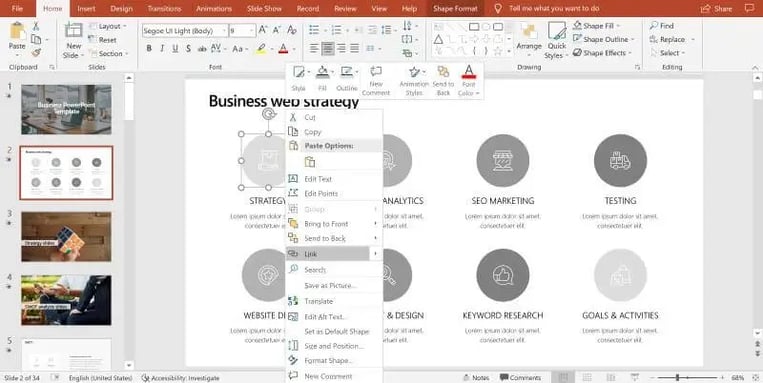
- After that, click "Place in this document" on the left side of the window.
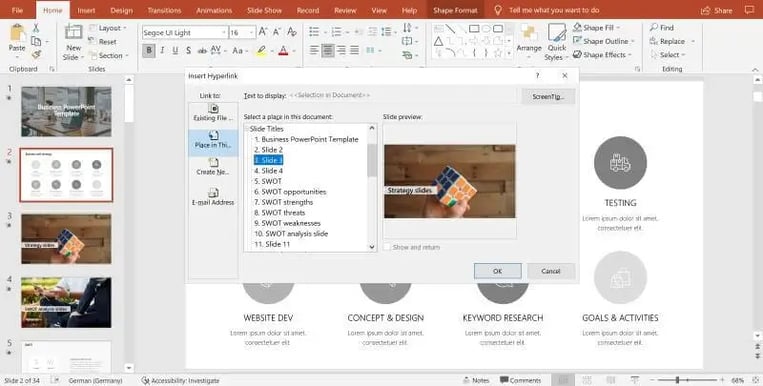
- Now select the slide to which the PowerPoint link should lead. Ta-da! You have set a hyperlink to another slide in PowerPoint.
How do you insert a self-created menu on all necessary slides in PowerPoint?
- In the ribbon, under "Insert", click on "Shapes" and then in the "Interactive Buttons" tab at the very bottom, click on the one arrow symbol pointing to the left. You can also use any other symbol.
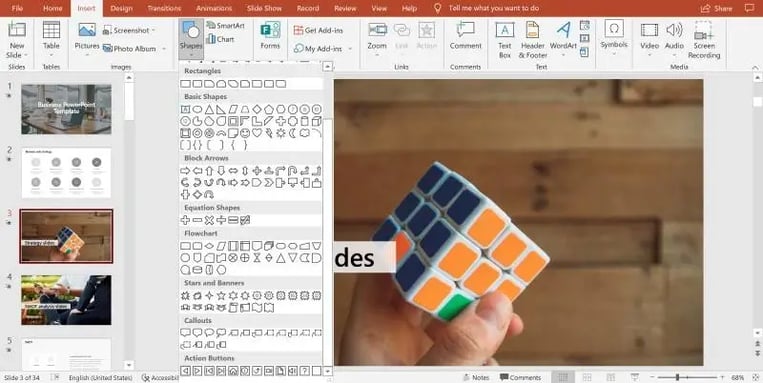
- You also need a right arrow and a home icon to get back to the topic overview. Insert all symbols according to your wishes.
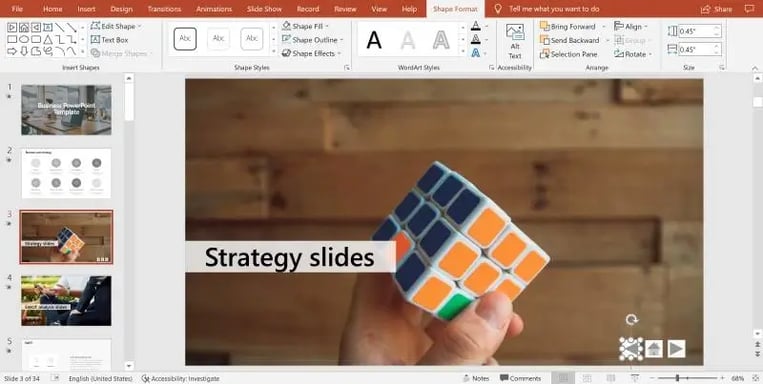
- As soon as you insert a symbol, a window will automatically appear in which you can select where the link should lead when clicking on the right or left arrow or on the home symbol.
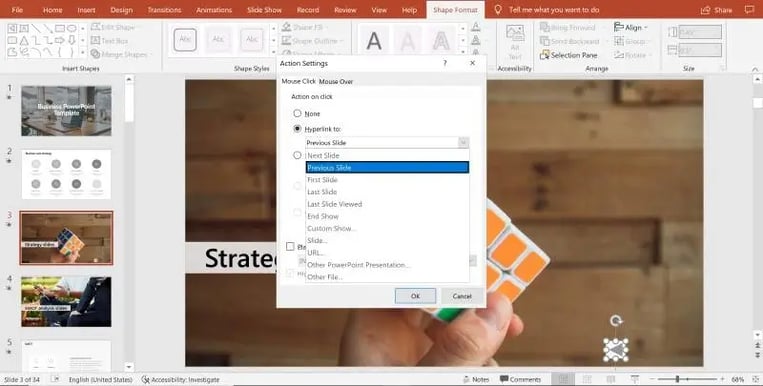
- The previous or next slide is already preset for the arrows, but this can also be edited. For the home icon, select the slide on which your topic overview is displayed and from which you want to navigate your presentation.
What other types of links can be used in PowerPoint?
Hyperlinks in PowerPoint are of course not only internal. Adding a link to a slide can also have an external destination, such as a specific website or external file.
This type of link does not fall under the scope of an interactive PowerPoint presentation but is useful additional knowledge in this context.
Excel links in PowerPoint
PowerPoint charts that automatically update from a dynamic Excel backend are very powerful.
Screenshots: before / after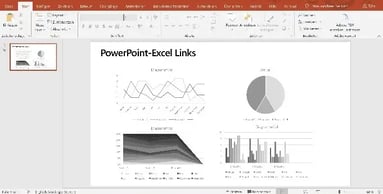
Take a look at our articles about linking PowerPoint and Excel for more information:
- Automatically update PowerPoint Excel links – save time and money
- Link PPT charts with Excel - How to keep your data up to date!
Create a presentation agenda in a few clicks
Did you know that you can make working in PowerPoint more efficient in a big way with empower®? With empower® Slide Generation you can create a linked agenda with just a few clicks: Agenda creation made easy in PowerPoint.
Eliminate formatting issues and outdated content. With AI, automation, and templates, you get professional, brand-compliant slides in seconds.
On our website, we have summarized all empower® solutions to boost efficiency in your company. However, you are also welcome to ask our team for advice. We look forward to hearing from you!


Switch from Google Slides to PowerPoint with empower®

Create Word templates: Step-by-step guide